
How to configure Remote
Phone
Prerequisites
- Telephony > Plugin > All permission
1. Login Genesys
Cloud application (with above required Telephony permissions)
2. Click Admin.
3. Under Telephony, click Phone
Management.
1. Select “Base Settings” tab.
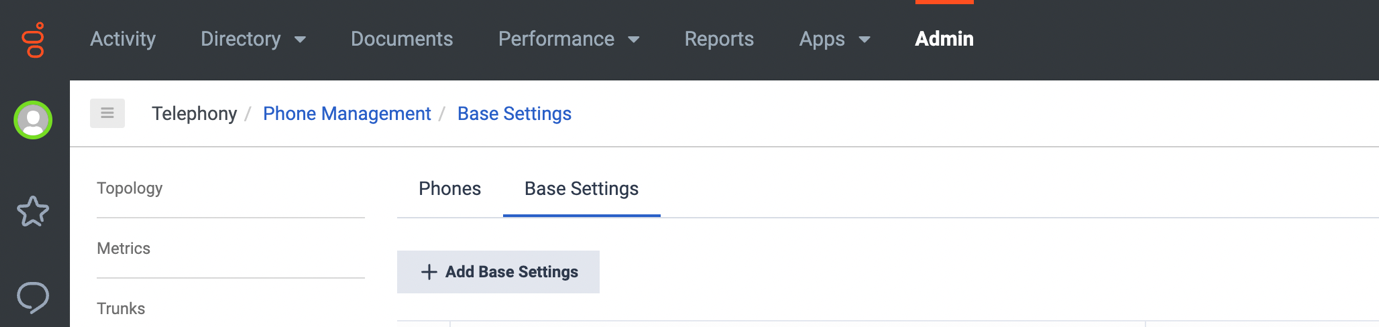
2. Click “Add Base Settings”
button.

3. Put the Base Settings Name
& select Remote form Phone Make and Model
from dropdown.

4. Click “Save Base Settings”
button.
Once you created a remote phone base settings profile, you can create
the phone profile.
This profile contains a few settings found on the Phone tab that define
the remote phone in Genesys Cloud.
Some settings on the Phone tab are inherited from the base
settings.
1. Select “Phones” tab.

2. Click “Add Phone” button.

3.
Enter a name in the Phone Name box
4. Select Base Settings name from
list as created in Step 3.
5.
From the Site list, select your
site.
6. In the Remote Address box, enter
the phone using E.164
format.

7. Click “Save Phone” button.